Upload Documents
Upload documents to Documenso to prepare them for signing. Covers supported formats, file size limits, and upload methods.
Limitations
| Limitation | Value |
|---|---|
| Supported formats | PDF, DOCX |
| Maximum file size | 50MB (configurable for self-hosted) |
| Encrypted PDFs | Not supported |
| Password-protected PDFs | Not supported |
Legacy .doc files | Not supported (convert to DOCX) |
Documenso does not support password-protected or encrypted PDF files. Remove encryption before uploading.
Supported Formats
Documenso accepts two file formats:
- PDF (
.pdf): used as-is. Recommended. - Word (
.docx): converted to PDF on the server during upload. The converted PDF is what recipients sign.
Other formats (.doc, .odt, .rtf, images) are not supported. Convert them to PDF or DOCX before uploading.
Upload a PDF whenever you can. DOCX files are converted to PDF using LibreOffice, which is not byte-identical to Microsoft Word. Spacing, line breaks, fonts, and complex elements (tables, charts, headers, footers) can shift in the converted PDF. For the final document to look exactly the way you designed it, export to PDF from Word, Google Docs, or Pages and upload the PDF directly.
DOCX support requires the document conversion service. It is enabled on documenso.com. Self-hosted instances must configure it before DOCX uploads are accepted.
Upload Methods
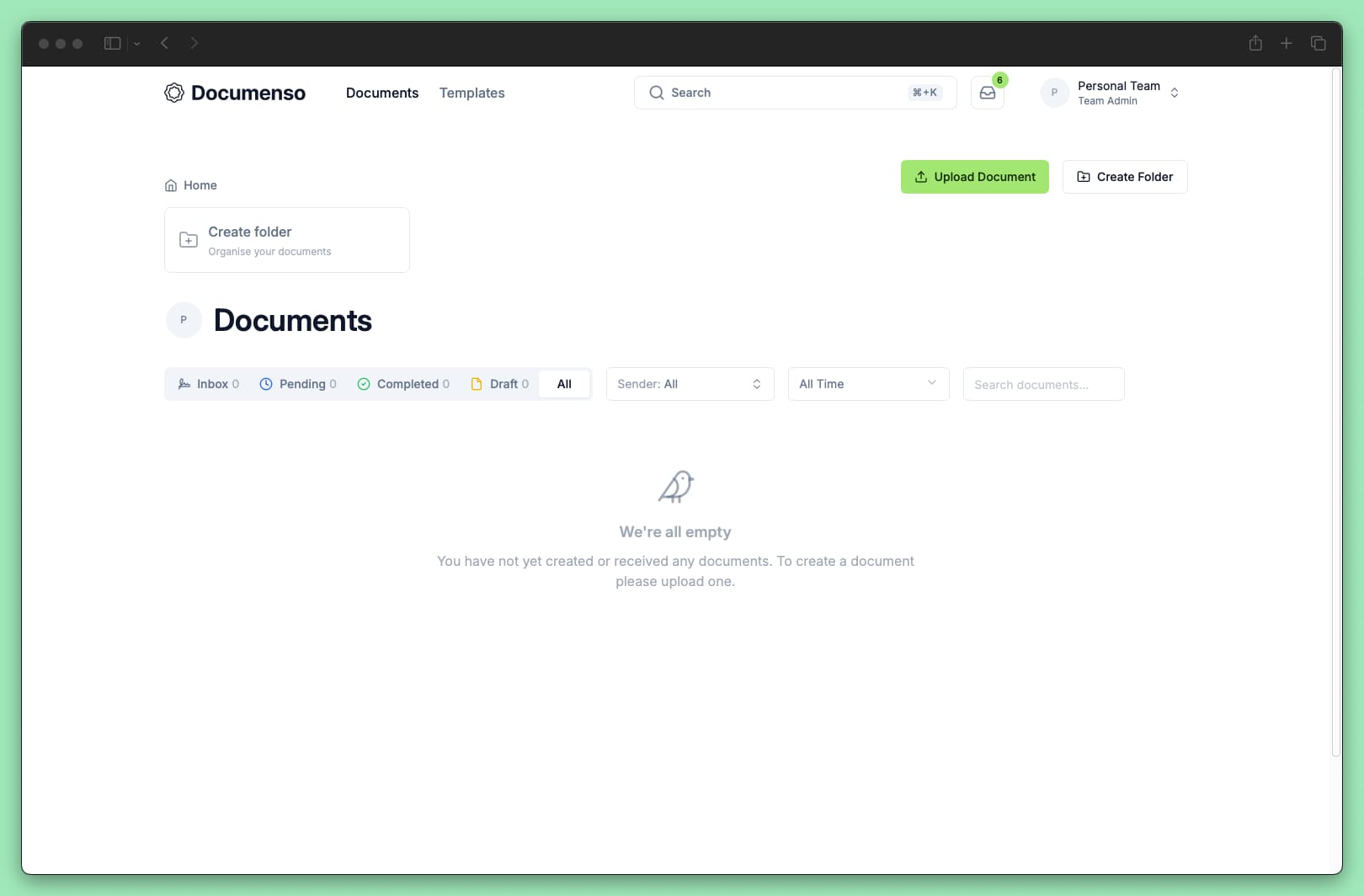
You can upload documents in two ways:
Drag and Drop
Drag and drop your file
Drag a PDF or DOCX file from your computer and drop it anywhere on the page.
Wait for the upload to complete
The document will process and the editor will open when ready. DOCX files take a few extra seconds while they are converted to PDF.
File Picker
Open the upload dialog
Click Upload Document in the top right.
Select your file
Choose a PDF or DOCX file from your computer.
Wait for the upload to complete
The document will process and the editor will open when ready.
DOCX Conversion
We always recommend uploading a PDF rather than a DOCX. If you have the original document open in Word, Google Docs, or Pages, export to PDF from there and upload the PDF. The result is guaranteed to match what you see on screen.
If you do upload a .docx file, Documenso converts it to PDF before adding it to the envelope. The original .docx is discarded. Only the converted PDF is stored, signed, and downloaded.
Things to keep in mind when uploading DOCX:
- The converted PDF will not be pixel-identical to your Word document. Conversion uses LibreOffice, which renders most documents faithfully but differs from Microsoft Word in subtle ways. Spacing, font metrics, line breaks, and complex layout features can shift.
- Always review the converted PDF before adding fields or sending. Open the document in the editor and scroll through every page to confirm it looks the way you expect.
- Form controls are flattened. Word content controls (drop-downs, date pickers, checkboxes) become static text or graphics. Use Documenso fields for anything that needs to be filled in.
- Fonts not installed on the server fall back to substitutes. On documenso.com, common fonts (Calibri, Arial, Times New Roman, etc.) are installed. On self-hosted instances, font fidelity depends on the operator's setup.
- Tracked changes and comments are preserved as they appear in Word. Accept or reject changes and remove comments before uploading if you do not want them in the final document.
If the converted PDF does not match what you expect, export the document to PDF from Word, Google Docs, or another tool and upload the PDF directly.
Uploading Multiple Documents
You can upload multiple files at once to create a single envelope containing multiple documents. The number of files you can upload per envelope depends on your plan.
To upload multiple files:
- Select multiple PDF or DOCX files when using the file picker, or
- Drag and drop multiple files at once
You can mix PDF and DOCX files in the same upload. All files become part of the same envelope and share the same recipients and signing workflow.
If you need separate signing workflows for each document, upload them individually.
What Happens After Upload
When you upload a document:
- Processing: Documenso validates the PDF and extracts page information
- Draft created: A new document is created in
Draftstatus - Editor opens: You're taken to the document editor to add recipients and fields
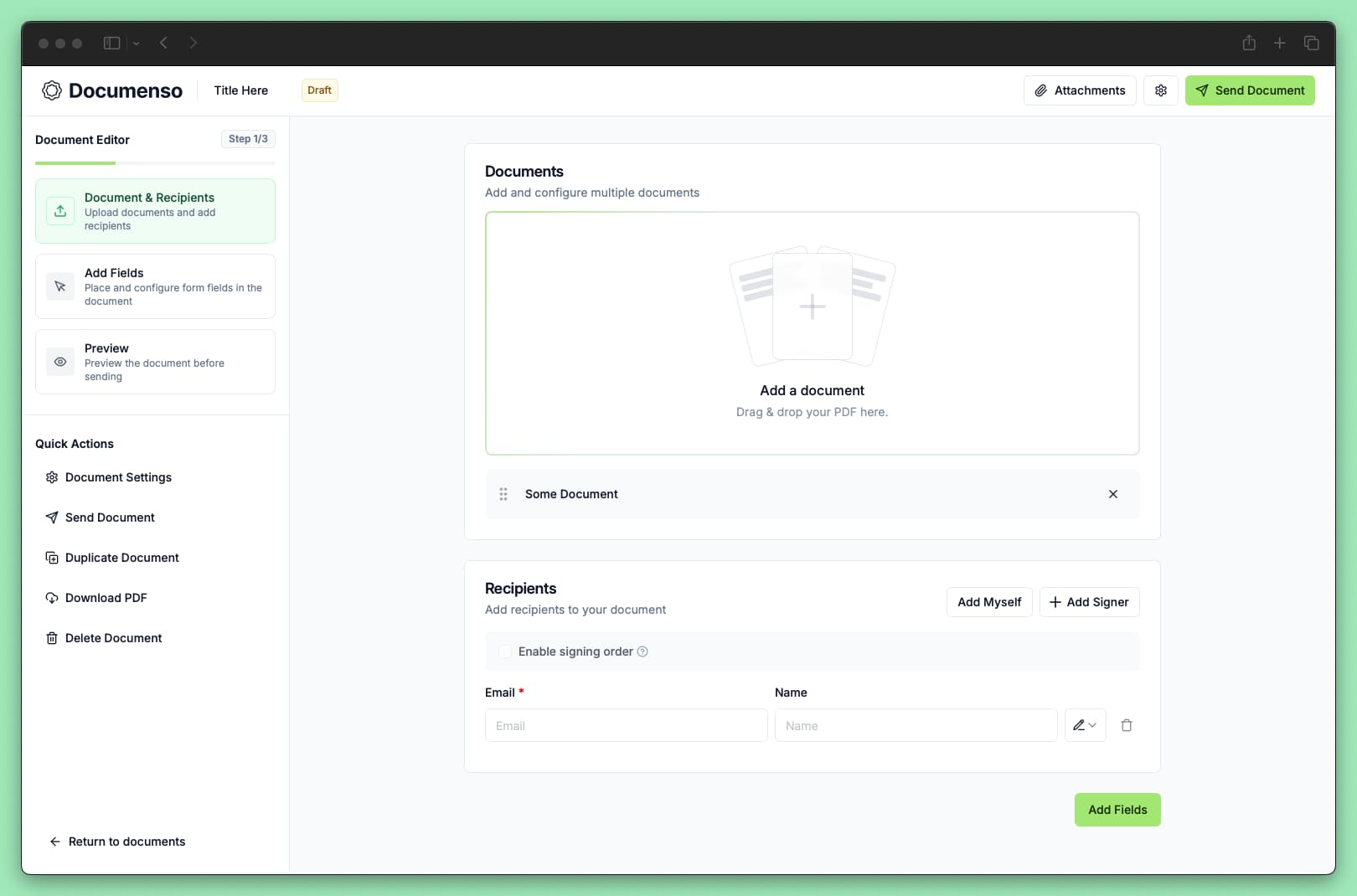
The document remains in Draft status until you send it. You can close the editor and return later - draft documents are saved automatically.
Troubleshooting
See Also
- Add Recipients - Specify who needs to sign
- Add Fields - Place signature and other fields on the document
- Send Documents - Send the document and monitor progress